How to Speed Up a WordPress Website: Complete Guide for Beginners
A slow WordPress site makes every task harder for visitors, from reading an article to completing a purchase. It can also make the WordPress dashboard frustrating to use and reduce the effectiveness of forms, landing pages, and checkout flows.
Most performance problems trace back to a few repeat offenders:
- Weak or overloaded hosting
- Missing or ineffective caching
- Oversized images
- Heavy themes and page builders
- Inefficient plugins
- Excessive CSS and JavaScript
- Third-party scripts
- Poorly optimized fonts
- Database or background-process problems
The goal is not to chase a perfect performance score. It is to remove the delays that visitors actually notice.
This guide explains how to identify the real bottleneck, make improvements safely, and verify that each change works.
Before You Start: Back Up Your Website
Before touching any optimization setting, create a backup you know how to restore.
A complete backup should include:
- The WordPress database
- Themes
- Plugins
- Uploaded media
- Configuration files
A backup is useful only when you can recover the site from it. Confirm that you know where the backup is stored and how to restore it.
For a WooCommerce store, membership site, busy publication, or business-critical website, test major changes on a staging site before applying them to production.
Keep these rules in mind throughout the process:
- Change one major setting at a time.
- Clear only the cache affected by that change.
- Retest the same page under the same conditions.
- Check important functionality.
- Keep the change only when it produces a measurable benefit.
How WordPress Loads a Page
Understanding the basic process makes performance problems easier to diagnose.
When someone visits a normal, uncached WordPress page:
- The browser sends a request to the server.
- The server starts PHP and loads WordPress.
- WordPress loads the active theme and plugins.
- WordPress retrieves information from the database.
- The server builds and sends the HTML page.
- The browser downloads CSS, JavaScript, fonts, images, and other resources.
- The browser processes those files and displays the page.
A delay at any stage can make the website feel slow.
Full-page caching shortens this process by storing generated HTML. Instead of rebuilding the same page for every visitor, the server can deliver a saved copy when the request is eligible for caching.
How Fast Should a WordPress Website Be?
There is no single load time or performance score that proves a website is fast. A simple article, an online store, and a logged-in membership platform create different amounts of work for the server and browser.
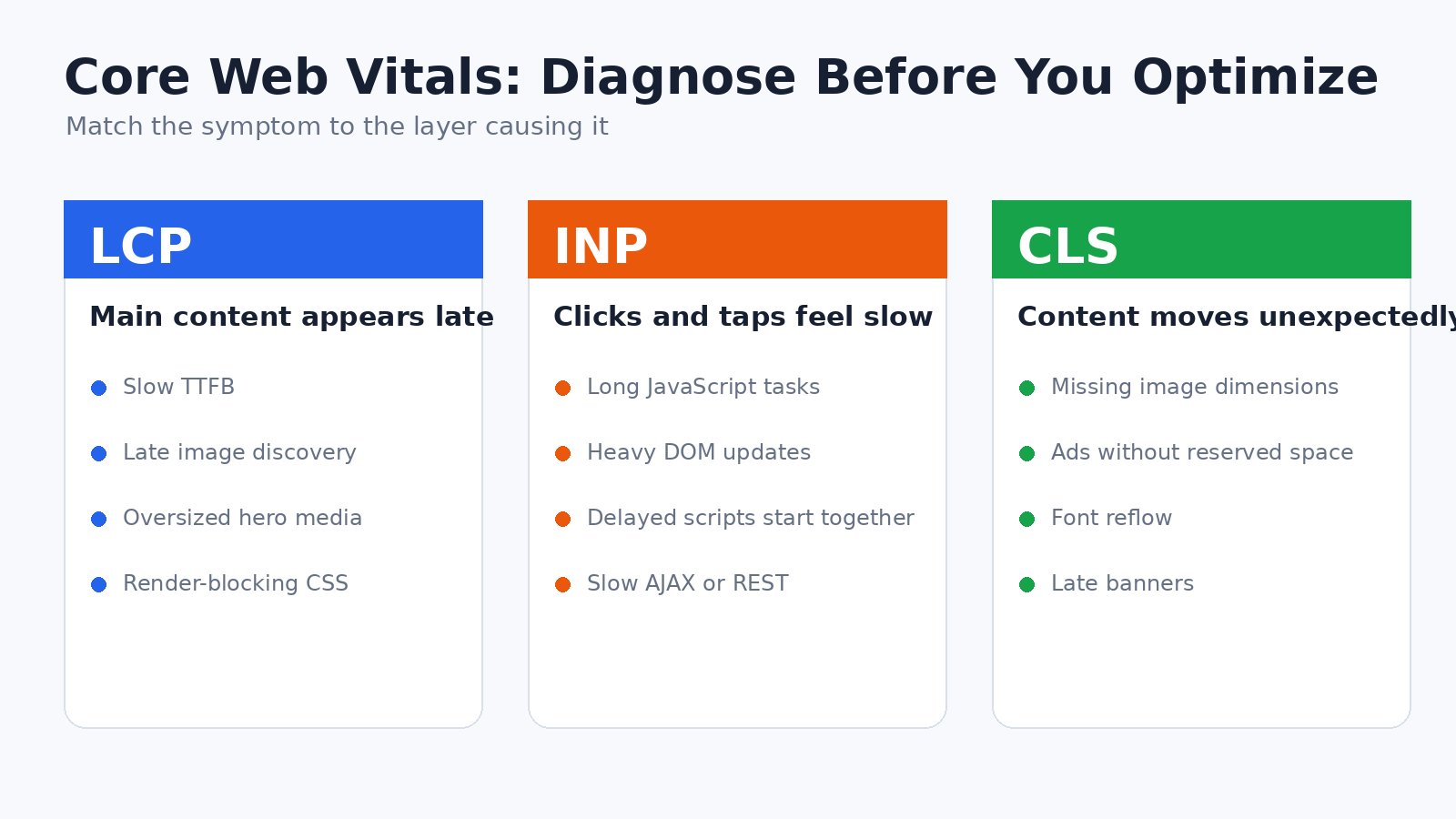
Start with Google’s Core Web Vitals:
| Metric | What it measures | Good target |
|---|---|---|
| Largest Contentful Paint, or LCP | How quickly the main visible content appears | 2.5 seconds or less |
| Interaction to Next Paint, or INP | How quickly the page responds to user interaction | 200 milliseconds or less |
| Cumulative Layout Shift, or CLS | How visually stable the page remains | 0.1 or less |
These thresholds are evaluated using real-user data at the 75th percentile. A page should perform well for most visitors, including people using slower phones and connections—not only during one ideal test.
Do not confuse Core Web Vitals with a Lighthouse or PageSpeed performance score. The score is a weighted summary from a simulated laboratory test. It can help you find problems, but it is not itself a Core Web Vitals metric and does not represent every visitor.
You may also encounter these measurements:
| Measurement | What it helps diagnose |
|---|---|
| Time to First Byte, or TTFB | How long the browser waits for the first response from the server |
| First Contentful Paint, or FCP | When the first visible text or image appears |
| Total Blocking Time, or TBT | How much laboratory-test time is blocked by long browser tasks |
| Speed Index | How quickly the visible page fills in during a laboratory test |
| Total page size | How much data the page transfers |
| Request count | How many separate files and connections the page uses |
TBT is sometimes used as a laboratory clue for responsiveness, but it is not the same as INP. INP is based on real interactions such as clicks, taps, and keyboard input.
A practical definition of “fast enough” is:
- Important content appears without a noticeable wait.
- Menus, forms, filters, and buttons respond promptly.
- Images, advertisements, and banners do not cause disruptive movement.
- Important templates perform well for most real visitors.
- Further optimization would produce only a small benefit or create unnecessary risk.
Test Your Website Before Changing Anything
Performance testing is most useful when you compare the same page under the same conditions.
Do not begin by installing several optimization plugins. First, establish a baseline.
Test More Than the Homepage
Test the pages that matter to the business, not just the homepage.
Choose a small set of representative URLs:
- Homepage
- Typical article or page
- Main landing page
- Product or service page
- Category or archive page
- Contact page
- Cart and checkout pages, when applicable
- A logged-in page, when applicable
A fast homepage tells you very little about an uncached product page, account screen, or search result.
Also separate two different problems:
- The public site is slow: investigate caching, images, CSS, JavaScript, third-party scripts, and server response time.
- The WordPress dashboard is slow: investigate plugins, database queries, scheduled tasks, external requests, object caching, and server resources.
Use Both Field Data and Lab Data
Field data shows what real visitors experience across different devices, browsers, locations, and network conditions.
Lab data comes from a controlled test and helps explain why a page behaves the way it does.
Google Search Console may group similar URLs rather than report every page separately. Field data may also be unavailable when a page or website does not receive enough eligible traffic.
Treat a Lighthouse score as a diagnostic clue, not a verdict on the site.
Run a Repeatable Test
For each test:
- Use the same URL.
- Test while logged out.
- Open a private or incognito window.
- Use the same device profile and test location when possible.
- Run the test at least three times.
- Record the median result rather than choosing the best run.
- Note whether the result was a cache hit or cache miss.
- Avoid clearing every cache before each comparison.
- Record the date, tool, and settings used.
The first request may be slower because the page or CDN edge has not yet been cached. Repeat visits may also benefit from browser caching. Both experiences matter, so record them separately.
Record a Baseline
| Item | Mobile result | Desktop result |
|---|---|---|
| LCP | ||
| INP field data or TBT lab clue | ||
| CLS | ||
| TTFB | ||
| Total page size | ||
| Number of requests | ||
| Cache hit or miss | ||
| Test date and tool |
Do not compare results from different tools as though they were measured under identical conditions. Use the same test setup before and after each change.
A 30-Minute WordPress Speed Triage
Use this workflow before changing advanced settings. It is designed to identify the most likely bottleneck quickly.
Step 1: Test One Important Page While Logged Out
Choose a page that matters to visitors, such as:
- Homepage
- Main service page
- Popular article
- Product page
- Landing page
Record:
- LCP
- CLS
- TTFB
- Total page size
- Main image size
- Total JavaScript transferred
- Whether the page was cached
Step 2: Identify What Is Slow
| Result | Most likely area to investigate first |
|---|---|
| High TTFB before content starts loading | Hosting, page caching, redirects, PHP, or database |
| Fast TTFB but slow LCP | Hero image, CSS, fonts, or resource priority |
| Page appears quickly, but buttons respond slowly | JavaScript, third-party scripts, or large DOM updates |
| Content jumps during loading | Missing dimensions, fonts, ads, banners, or embeds |
| First visit is slow, but repeat visit is fast | Cold cache, browser cache, or CDN cache |
| Public pages are fast, but admin is slow | Plugins, database, AJAX, REST, or background jobs |
| Only product or search pages are slow | Dynamic queries, filters, commerce plugins, or cache exclusions |
Step 3: Fix the Largest Obvious Problem
Examples:
- A 2 MB hero image: resize and compress it.
- No page caching: enable one reliable caching system.
- Three chat and marketing widgets: remove the ones you no longer use.
- Eight font files: reduce the number of families and weights.
- Slow uncached response: ask the host for PHP, worker, and database information.
- Broken mobile interaction: inspect delayed JavaScript.
Step 4: Retest the Same Page
Use the same:
- URL
- Test tool
- Device profile
- Location
- Login state
Do not compare a mobile test before the change with a desktop test afterward.
Step 5: Keep or Revert the Change
Keep the change only when:
- Performance improves consistently.
- The page still works correctly.
- No important tracking or business function breaks.
- The improvement justifies the added complexity.
Revert it when the result is inconsistent, negligible, or creates maintenance problems.
The Best Order for Speeding Up WordPress
Start with the largest bottleneck instead of applying every recommendation a testing tool produces.
Use this sequence unless your testing identifies a more urgent problem:
- Confirm that the site has a working backup.
- Test representative pages while logged out.
- Check whether full-page caching is working.
- Fix clearly oversized images, especially the main visible image.
- Remove unnecessary plugins, widgets, and third-party scripts.
- Investigate hosting when cached and uncached responses are both slow.
- Simplify heavy templates, sliders, animations, and page-builder layouts.
- Optimize fonts, CSS, and JavaScript carefully.
- Review the database, scheduled tasks, and object caching when uncached or logged-in requests remain slow.
- Add or refine a CDN when geography, traffic, or origin load justifies it.
- Retest the same pages and verify important functionality.
For most beginner sites, caching, image sizing, plugin cleanup, and simpler page layouts deliver more value than advanced code processing.
A small brochure site may not need database tuning, cron changes, persistent object caching, or application profiling. Those tasks should be based on measured evidence.
1. Choose Hosting That Can Handle Your Website
Hosting determines how quickly WordPress can process uncached requests. It also affects how well the site handles traffic spikes, background jobs, logged-in users, checkout requests, and administrative work.
A hosting plan can become a bottleneck because of:
- Limited CPU or memory
- Slow or congested storage
- Too few PHP workers or application processes
- Database latency
- Overcrowded shared infrastructure
- Frequent resource throttling
- Poor cache configuration
- A data center far from the main audience
Shared, Managed, VPS, and Dedicated Hosting
| Hosting type | Best suited to | Main advantage | Main limitation |
|---|---|---|---|
| Basic shared hosting | Small, mostly cached sites | Low cost and minimal setup | Performance may vary when resources are heavily shared |
| Managed WordPress hosting | Site owners who want WordPress-specific support | Integrated caching, backups, staging, and support | Higher cost and less server-level control |
| VPS or cloud server | Sites with qualified technical management | More control over resources and software | A poorly configured VPS can be slower and less secure than managed hosting |
| Dedicated infrastructure | Large or specialized workloads | Resource isolation and maximum control | High cost and significant maintenance responsibility |
A well-managed shared platform can outperform a poorly configured VPS.
Server configuration, database tuning, caching, monitoring, and maintenance matter more than the product label.
Check Whether Hosting Is Actually the Problem
Compare cached and uncached behavior:
- Cached pages are fast, but uncached pages are slow: investigate PHP, database queries, plugins, and available application workers.
- Both cached and uncached pages are slow: investigate the host, CDN path, network location, or cache configuration.
- The site slows mainly during traffic spikes: review CPU, memory, worker limits, database load, and cache-hit ratio.
- The public site is fast, but the dashboard is slow: investigate uncached application and database work rather than front-end files.
A slow TTFB does not always prove that the host is at fault. TTFB can include:
- Redirects
- DNS lookup
- Connection setup
- TLS negotiation
- CDN processing
- Network distance
- PHP execution
- Database work
Hosting should be upgraded only when the evidence points to a server limitation.
Questions to Ask Your Host
Ask for evidence rather than a generic recommendation to upgrade:
- Is the account reaching CPU, memory, process, worker, or storage limits?
- What percentage of eligible anonymous requests are served from cache?
- Are PHP or database slow logs available?
- Is persistent object caching supported?
- Are background jobs overlapping or timing out?
- Can the data-center location be changed?
- Does the plan provide staging and rollback tools?
- Are compression and browser-cache headers already configured?
- Does the host recommend a specific caching plugin or prohibit duplicate caching?
Ask the host for resource data, cache status, and slow-request evidence before paying for a larger plan.
When an Upgrade or Migration Is Justified
Consider changing the plan or host when testing shows that:
- Resource limits are repeatedly reached.
- Uncached requests remain slow after plugin and database investigation.
- The site cannot handle normal concurrent traffic.
- Support cannot provide useful diagnostics.
- Necessary features such as staging, object caching, or sufficient workers are unavailable.
- Performance varies severely because of infrastructure contention.
Test a realistic copy of the website before migrating. An empty WordPress installation does not represent the workload of the real theme, plugins, content, products, users, or scheduled tasks.
2. Use Page Caching

For most public WordPress pages, full-page caching offers a large improvement because it avoids rebuilding the same HTML for every anonymous visitor.
Full-page caching works best when many visitors receive the same HTML.
What Page Caching Does
Without page caching, WordPress may need to:
- Start PHP.
- Load WordPress core.
- Load the active theme and plugins.
- Run database queries.
- Build the page.
- Send the final HTML.
A page cache stores the generated HTML. When a matching visitor requests the page again, the cached version can be delivered with much less PHP and database work.
Page caching is most effective for content that is the same for many visitors. It is less useful for personalized, logged-in, account, cart, checkout, or highly dynamic requests.
Main Types of Caching
| Cache type | What it stores | When it helps |
|---|---|---|
| Full-page cache | Finished HTML | Anonymous pages shared by many visitors |
| Browser cache | Static files on the visitor’s device | Repeat visits and navigation between pages |
| Object cache | Reusable WordPress data and query results | Dynamic, logged-in, or database-heavy requests |
| Opcode cache | Compiled PHP instructions | Most PHP requests |
| CDN edge cache | Assets or HTML at distributed locations | Distant visitors, traffic spikes, and reduced origin work |
These layers solve different problems. A site may use several of them without running several competing full-page caching systems.
Where Page Caching May Be Enabled
Depending on the host, it may be controlled through:
- The hosting dashboard
- A host-supplied WordPress plugin
- A general caching plugin
- A reverse proxy
- A CDN with HTML edge caching
A cache plugin is not automatically useful when the host already handles page caching at the server level.
Before installing another plugin, check what the host already provides. Some hosts manage the actual server cache while a WordPress plugin provides cache clearing and exclusions.
Pages That Commonly Need Special Rules
Review:
- Cart and checkout
- Customer account pages
- Membership dashboards
- Personalized recommendations
- Search results
- Form confirmation pages
- Pages that display user-specific prices, names, or permissions
Do not exclude the entire website from caching simply because a few pages are dynamic. Exclude only the URLs, cookies, or conditions that require personalized output.
How to Confirm Page Caching Works
A beginner-friendly check:
- Log out of WordPress.
- Open the page in a private window.
- Load it once and record the response time.
- Reload it and compare the result.
- Make a small content change.
- Confirm that the updated page appears after the relevant cache is purged.
For a more precise check, open the browser’s developer tools, select the document request in the Network panel, and inspect its response headers.
Hosts and CDNs use different header names, but common values include:
HITMISSBYPASSDYNAMIC
The important question is not whether caching is enabled, but whether eligible requests are consistently served from cache.
A single cache hit is not enough. Frequent misses may be caused by:
- Short expiration times
- Unnecessary cookies
- Query-string variations
- Constant cache purges
- Rules that bypass too many pages
Cold Cache Versus Warm Cache Testing
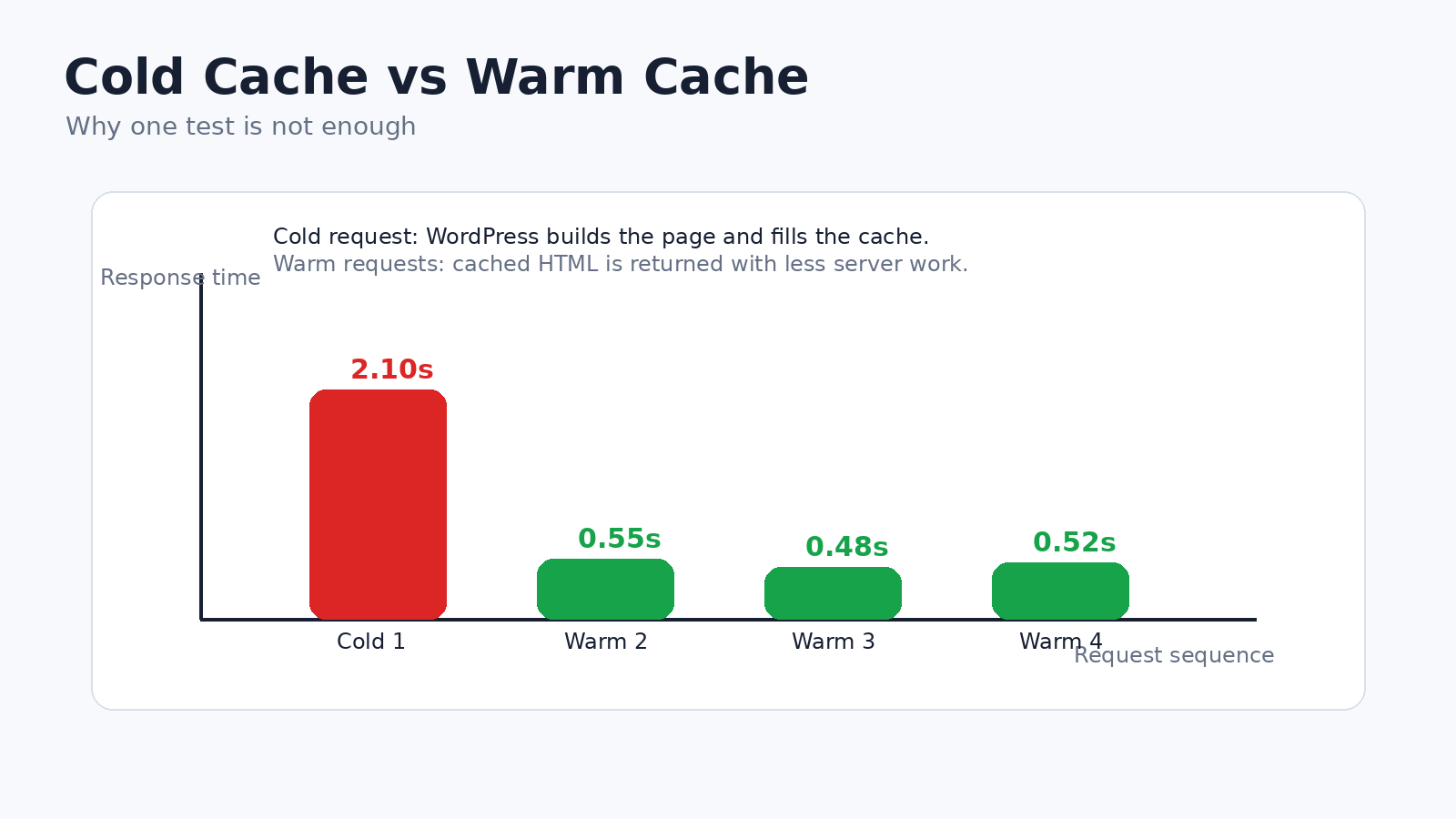
A cache can make a site appear fast during testing while the first visitor after a purge still receives a slow response.
Test both states.
Cold-Cache Test
Use this test after:
- Cache expiration
- A site update
- A CDN purge
- A deployment
- A server restart
Record how long the first request takes.
Warm-Cache Test
Reload the same page after the cache has been populated.
Record:
- Response time
- Cache header
- TTFB
- Overall loading behavior
How to Interpret the Difference
| Result | Interpretation |
|---|---|
| Cold slow, warm fast | Cache works, but uncached generation is expensive |
| Cold and warm both slow | Cache may be inactive, bypassed, or unrelated to the main problem |
| Cold and warm both fast | Healthy baseline |
| Warm speed varies greatly | Server contention, unstable cache rules, or third-party variation |
| Cache frequently misses | Cookies, query strings, short expiry, frequent purges, or exclusions |
The first uncached visit matters, even on a site that performs well once the cache is warm.
Search crawlers, newly published pages, logged-in users, cache purges, and personalized requests may still reach the origin.
3. Optimize Images
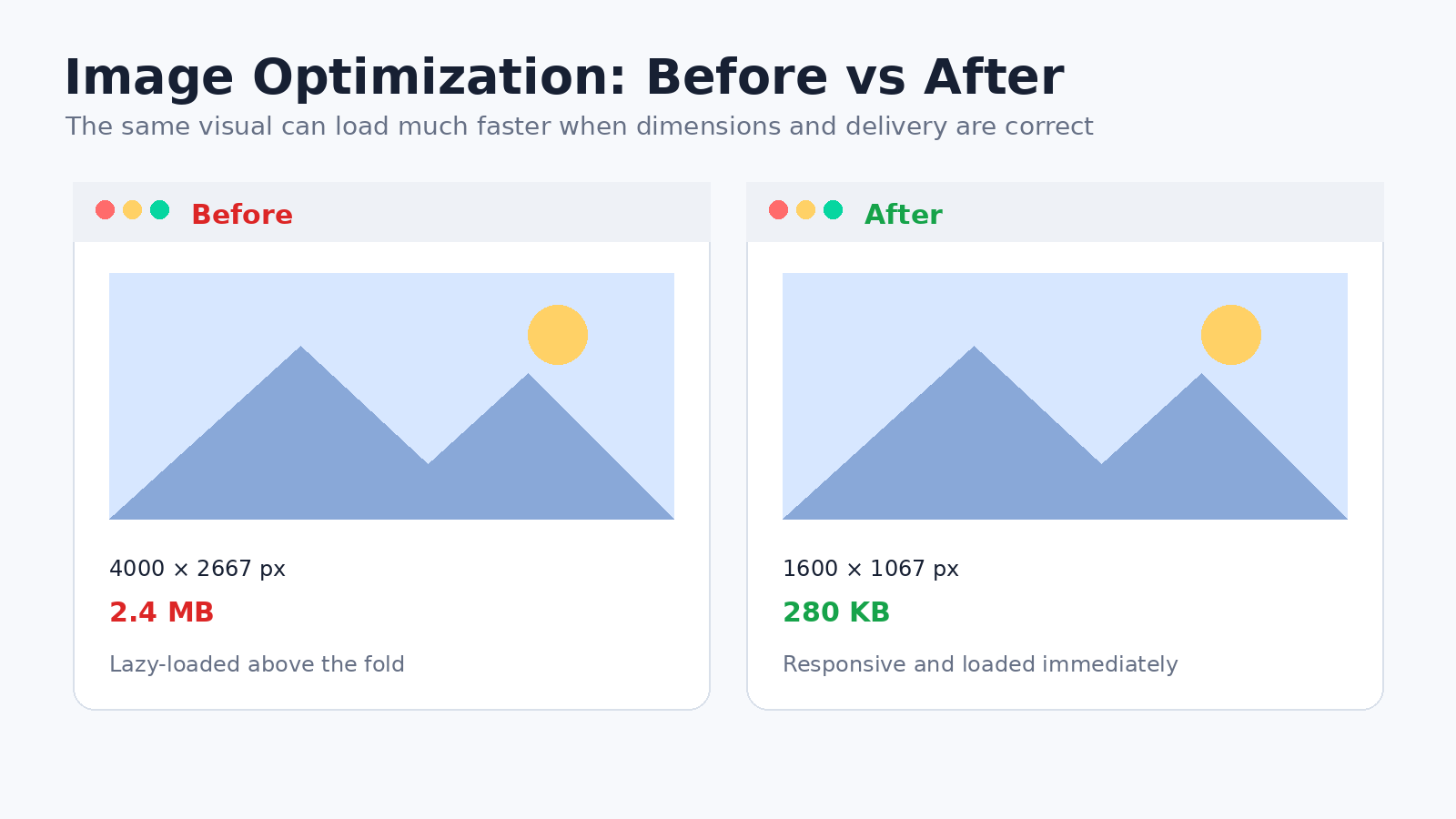
Images are frequently among the largest resources on a page. Proper dimensions, compression, responsive delivery, and selective lazy loading can produce major improvements.
An image-format change will not rescue a file that is several times larger than its display dimensions.
Resize first, compress second, and verify which file the browser actually downloads.
Resize Images Before or During Upload
Do not serve a 4,000-pixel-wide photograph in a 700-pixel content area unless a high-resolution version is genuinely required.
Upload an image large enough for its maximum display size, then allow WordPress or an image service to generate suitable responsive versions.
When inserting an image through WordPress or a page builder, avoid selecting “Full Size” unless the layout genuinely needs the original dimensions.
Choose an Appropriate Format
| Format | Best for | Notes |
|---|---|---|
| JPEG | Photographs | Broad compatibility and effective photo compression |
| PNG | Transparency or graphics requiring lossless detail | Often unnecessarily large for photographs |
| WebP | Photographs and graphics | Efficient compression with broad modern-browser support |
| AVIF | High-efficiency image delivery | Can produce smaller files, but processing and fallback behavior should be tested. |
| SVG | Logos, icons, and simple vector graphics | Scales cleanly; uploads must be sanitized and handled securely |
Do not enable unrestricted SVG uploads. SVG files can contain active content and should be processed through a trusted, secure workflow.
Compress Images
Compression can be:
- Lossless: preserves image information while reducing file size where possible.
- Lossy: removes some information to create a smaller file.
Moderate lossy compression is often suitable for normal web photographs, but inspect:
- Product images
- Portfolio work
- Screenshots
- Diagrams
- Graphics containing text
Excessive compression can make important detail difficult to see.
Use Responsive Images
Responsive image markup allows the browser to choose an appropriately sized file for the device and layout.
WordPress can generate srcset and sizes information when themes, plugins, and page builders use its image functions correctly.
Problems often appear when:
- A page builder inserts the original image unnecessarily.
- An image is used as a CSS background.
- A plugin outputs custom markup without responsive attributes.
- The original upload is smaller than the required display size.
- The theme defines unsuitable image sizes.
Use browser developer tools to verify which file the device actually downloaded.
Lazy-Load Below-the-Fold Images
Lazy loading delays images and embedded frames that are not immediately visible.
Use it for images farther down the page.
Do not lazy-load the image visitors are supposed to see first, especially when it is the LCP element.
A practical rule:
- Top-of-page hero or featured image: load normally.
- Images farther down the page: lazy-load.
- Decorative background images: remove, simplify, or load conditionally where practical.
Add Image Dimensions
Set width and height attributes, or reserve an equivalent aspect-ratio space, so the browser knows how much room the image requires before it downloads.
This helps prevent layout shifts and improves CLS.
Image Optimization Checklist
- Resize oversized originals.
- Compress every important image.
- Use an appropriate format.
- Confirm responsive image markup is present.
- Select a suitable WordPress image size.
- Lazy-load only below-the-fold images.
- Do not lazy-load the main LCP image.
- Add intrinsic dimensions or aspect ratios.
- Replace large animated GIFs with a more efficient format where appropriate.
- Check mobile image delivery separately.
- Retain backups before bulk conversion or deletion.
4. Remove Unnecessary Plugins
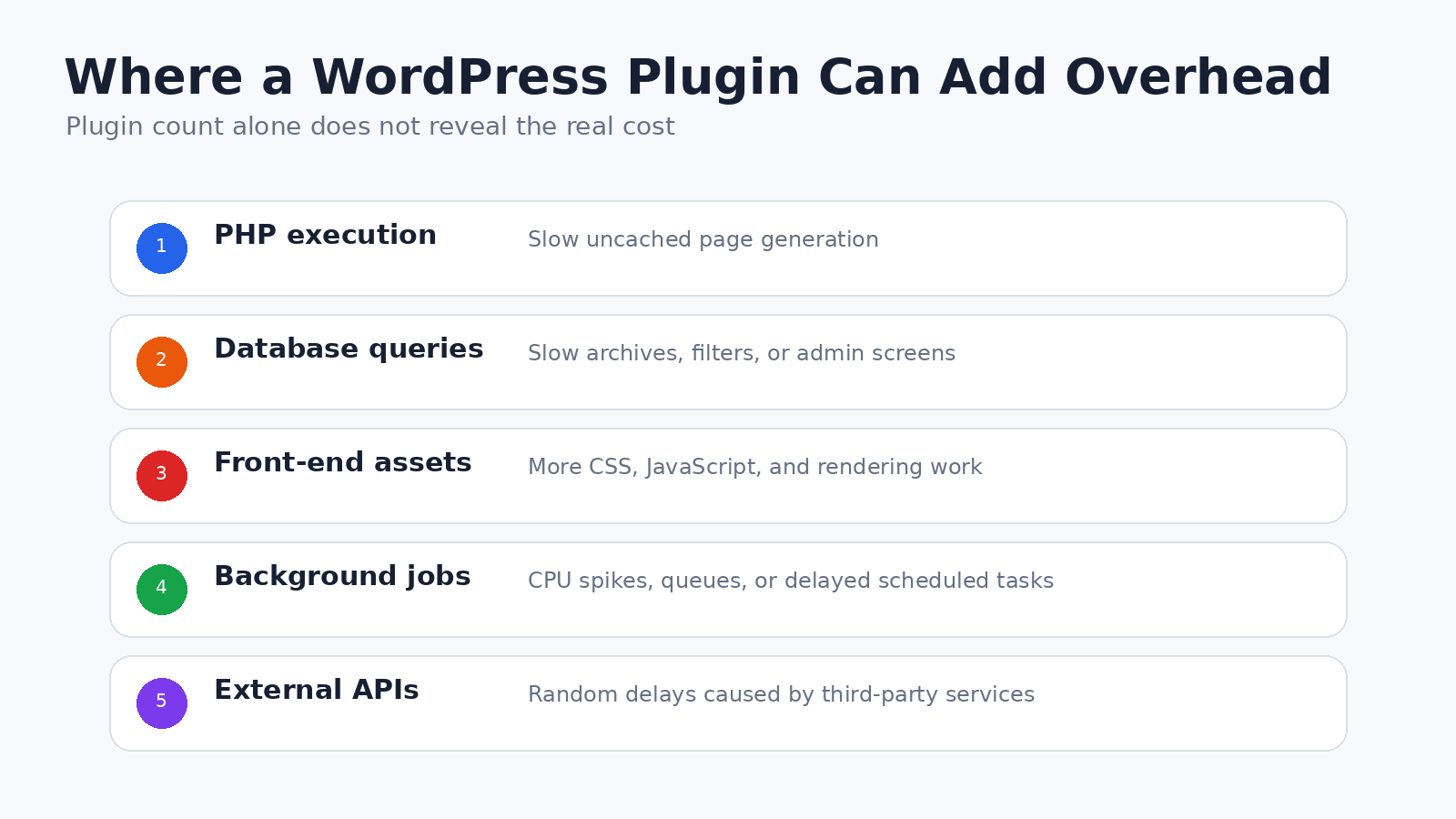
Plugin count is a poor shortcut for judging performance.
One plugin that runs expensive queries or loads several third-party services can do more damage than a dozen small, focused plugins.
Measure whether a plugin adds server work, browser work, scheduled jobs, or external requests before deciding what to remove.
Understand the Main Types of Plugin Overhead
| Type of overhead | Example symptom |
|---|---|
| PHP execution | Slow uncached page generation |
| Database queries | Slow product, search, archive, or admin screens |
| Autoloaded settings | Every WordPress request carries unnecessary option data |
| Front-end CSS or JavaScript | Larger pages and slower rendering or interaction |
| Background tasks | Periodic CPU spikes, delayed jobs, or long queues |
| External API requests | Random delays when another service responds slowly |
| Admin-only processing | Public site is fast, but dashboard screens are slow |
A plugin that loads a stylesheet is not automatically the main problem. Measure whether its server work, browser work, or background activity is significant.
Audit Plugins Safely
Create a working table:
| Plugin | What it does | Where it runs | Evidence of impact | Action |
|---|---|---|---|---|
| Example form plugin | Contact forms | Contact page and admin | Loads assets on every page | Restrict assets or replace |
| Example backup plugin | Scheduled backups | Background | CPU spike during backup window | Reschedule or move off-site |
| Example analytics plugin | Reports and tracking | Front end and admin | Duplicate tracking request | Remove duplicate implementation |
On staging:
- Record the current result.
- Deactivate one plugin.
- Clear the relevant page cache.
- Retest the same URL and action.
- Check the front end and dashboard.
- Reactivate the plugin before testing the next one unless you are intentionally testing combinations.
On a production site, use a host staging environment or a troubleshooting mode that limits changes to your administrator session when available.
Do not deactivate commerce, security, membership, or form plugins on a live site without understanding the impact.
Find Which Plugin Owns a File
In the browser Network panel, inspect the URL of a CSS or JavaScript file.
WordPress plugin files often contain a path such as:
/wp-content/plugins/plugin-folder/
Theme files commonly contain:
/wp-content/themes/theme-folder/
A third-party domain usually indicates an external service such as:
- Analytics
- Chat
- Advertising
- Fonts
- Video
- Maps
- Social media
File ownership is only the first clue. A plugin may also create server-side or database costs that do not appear in the browser’s file list.
Avoid Feature Duplication
Look for overlapping functions such as:
- Multiple SEO suites
- Multiple full-page caches
- Duplicate analytics tags
- Several image optimization systems
- Multiple security scanners
- Several pop-up or form frameworks
- A page builder plus unused extension packs
Removing a duplicate feature is usually safer and more effective than adding another optimization layer to compensate for it.
5. Use a Lightweight Theme and Simple Layout
A theme is lightweight only when the finished page is lightweight.
Demo scores are meaningless when the real site uses different layouts, fonts, plugins, and content.
Evaluate a Theme on a Realistic Page
Compare themes using the same content and features. Check:
- HTML and DOM complexity
- CSS and JavaScript loaded
- Font requests
- Layout stability
- Mobile menu behavior
- Accessibility
- Image handling
- Dependence on proprietary shortcodes or builders
- Whether assets load only when needed
- Whether important templates remain easy to maintain
A smaller file count does not automatically mean better performance. A single large bundle may contain a large amount of unused code.
What Makes a Layout Expensive?
Common causes include:
- Deeply nested page-builder containers
- Sliders with several full-width images
- Background videos
- Multiple animation libraries
- Large decorative images
- Several font families and weights
- Hidden desktop and mobile versions of the same content
- Interactive widgets loaded before they are needed
- Pop-ups, chat, reviews, and maps on every page
Simplify Before Optimizing
Before enabling advanced CSS or JavaScript processing, ask whether the feature is worth its cost.
Examples:
- Replace an automatic slider with one clear hero section.
- Replace an embedded map with a static preview and directions link.
- Remove animations that do not clarify meaning.
- Use one well-designed form instead of several overlapping lead tools.
- Avoid loading an entire page-builder add-on pack for one minor widget.
Removing a slider is usually more reliable than trying to optimize every file the slider loads.
Do Not Change Themes Only for a Better Demo Score
A theme change can affect:
- Templates
- Menus
- Widgets
- Structured data
- Product pages
- Shortcodes
- Custom fields
- Analytics
- Advertising
- Accessibility
- Conversion tracking
Test a full staging copy and compare the same completed pages. A faster empty template is not useful if rebuilding the site introduces errors or removes important functionality.
6. Optimize CSS
CSS optimization belongs near the end of the process, after obvious problems have been fixed.
Unused CSS removal, critical CSS, and file combination can help, but they are not the safest first steps for a beginner.
Start by Finding the Source
Use the browser Network panel or a performance report to identify:
- Large stylesheets
- Stylesheets that load on every page
- Page-builder CSS
- Plugin CSS
- Font-related CSS
- Files that block initial rendering
Before changing delivery settings, ask whether the stylesheet can be removed or loaded only where its component appears.
Remove Unused CSS Carefully
Unused-CSS tools analyze which selectors appear to be needed and postpone or remove the rest.
They can miss styles used by:
- Mobile menus
- Pop-ups
- Accordions
- Tabs
- Sliders
- Form errors
- Logged-in users
- Hover and focus states
- Dynamically inserted content
- Responsive breakpoints
Unused-CSS tools can miss styles that appear only after a click, validation error, breakpoint change, or login.
Enable the feature on staging first. Test every important template at several screen widths and trigger interactive elements that are hidden during the initial load.
Keep a record of every exclusion you add; undocumented optimization rules become technical debt quickly.
Minify CSS
Minification removes comments, whitespace, and unnecessary characters.
It is generally low risk, but the benefit may be small when transfer compression is already active. Use it after higher-impact problems have been addressed.
Generate Critical CSS Only When It Is Reliable
Critical CSS contains the styles required for the initially visible part of the page. The remaining CSS loads later.
Failures may produce:
- Unstyled content
- Visible flashes
- Missing responsive styles
- Broken menus or pop-ups
- Different results for logged-in and logged-out users
- Incorrect styles after template changes
A critical-CSS system should regenerate its output when templates, plugins, or content structures change.
Combining Files Is a Test, Not a Rule
Combining stylesheets can help some sites with many small files or poor delivery configuration.
It can also create a large bundle that:
- Invalidates more often
- Contains unused styles
- Delays critical CSS
- Creates ordering conflicts
Test both configurations under the same conditions. Keep the simpler setup when the difference is negligible.
7. Optimize JavaScript
JavaScript size matters, but execution timing matters more.
The browser must parse, compile, and execute JavaScript, often on the main thread that also handles clicks, taps, typing, and visual updates.
A small script that blocks a click can be more harmful than a larger file that runs later without interrupting the user.
Identify the Script Before Optimizing It
Use the browser Network panel to inspect the file URL and domain. Determine whether it belongs to:
- WordPress core
- The active theme
- A plugin
- A tag manager
- Analytics
- Advertising
- Chat
- Video
- Maps
- Consent management
- Social media
A large file is not automatically the worst offender. A smaller script that performs repeated calculations or modifies a large page can create more interaction delay.
Remove or Restrict Scripts First
Ask:
- Is the feature still used?
- Does it need to load on every page?
- Is the same service installed twice?
- Can it load after consent?
- Can an embed use a click-to-load preview?
- Can the feature be implemented without a large library?
For example, a booking widget may be necessary on a contact page but unnecessary on every article.
Understand Defer and Delay
Defer allows a script to download while the browser continues parsing HTML, then execute after the document has been parsed.
Delay until interaction postpones selected scripts until a visitor scrolls, moves, taps, or clicks.
Delaying every script until interaction can make a benchmark look better while making the first click noticeably worse.
When the visitor clicks, several delayed scripts may execute at once and compete with the action the visitor expected.
Test:
- Mobile navigation
- Search
- Forms
- Product filters
- Add-to-cart buttons
- Consent controls
- Login
- Checkout
- Analytics and advertising events
Diagnose Interaction Problems
Poor responsiveness is often specific to one interaction.
Examples:
- Slow menu opening may indicate a heavy event handler or layout recalculation.
- Slow product filtering may indicate a large DOM update or expensive request.
- A delayed add-to-cart response may involve JavaScript, AJAX, database work, or third-party tracking.
- Typing delay in a search field may indicate work running after every keystroke.
Reproduce the exact slow interaction before changing site-wide JavaScript settings.
Do not optimize only the total JavaScript size. Find out what runs when the visitor interacts.
8. Optimize Fonts
Font optimization starts with counting the files that actually load.
One font family can still generate several requests when multiple weights, styles, and character sets are used.
Count Actual Font Files
Open the browser Network panel and filter for fonts. Record:
- How many files load
- Their sizes
- Their families
- Their weights and styles
- Whether they are used on the current page
Use Only the Variants You Need
A practical setup often uses:
- One main font family
- Two or three required weights
- Italic only when the design uses it
- A system-font fallback
Review icon fonts as well. Loading an entire font to display a handful of icons may be less efficient than using individual SVG icons.
Consider Variable Fonts Carefully
A variable font can contain several weights or styles in one file. It may reduce requests, but the file can still be large when it includes ranges or characters the website does not use.
Compare the transferred size and actual usage rather than assuming that one file is always smaller than several static files.
<h3>Self-Hosting Versus External Hosting
Self-hosting fonts gives you more control, but only when caching, compression, and file selection are configured properly
ly.
Self-hosting can provide greater control over:
er:
- Cache headers
- Privacy
- File selection
- Subsetting
- CDN delivery</li></ul>It is not automatically faster. Poor compression, short cache lifetimes, oversized character sets, or slow origin delivery can erase the advantage.
Reduce Layout Shift
Use a fallback font with similar proportions where possible. Large differences in letter width or line height can cause headings and paragraphs to reflow when the custom font appears.
Use an appropriate
font-displaystrategy so text remains readable during loading.Preload Sparingly
Preload only a font that is required immediately above the fold and is actually used by the initial page.
Do not preload every family, weight, and style. Each preload competes with the main stylesheet, hero image, and other important resources.
9. Use a CDN When It Solves a Real Problem
A CDN is useful when it reduces distance, origin work, or repeated delivery—not simply because it has been enabled.
Depending on the service and configuration, a CDN may provide:
- Static asset delivery
- Reverse proxying
- Full-page edge caching
- Image resizing or conversion
- Traffic filtering
- Origin shielding
- DNS and security services
Changing nameservers does not prove that HTML or static files are being cached at the edge.
Who Benefits Most?
A CDN is more likely to help when:
- Visitors are spread across several regions.
- The origin server is far from much of the audience.
- Pages contain many cacheable assets.
- Traffic arrives in sudden spikes.
- The CDN can cache eligible HTML safely.
- The origin needs protection from repeated or abusive requests.
Visitors near the origin may still benefit from connection reuse, edge caching, image optimization, and security filtering. Geography is only one factor.
Static Asset Caching Versus Full-Page Edge Caching
Static asset caching stores files such as CSS, JavaScript, images, and fonts.
Full-page edge caching stores HTML responses. It can reduce origin work much more, but it requires careful rules for:
- Logged-in users
- Cart and checkout
- Customer accounts
- Personalized content
- Regional prices or language
- Cookies and query strings
A CDN should bypass or vary the cache for content that is genuinely user-specific.
Common CDN Problems
- HTML is not actually being cached.
- Too many cookies cause cache bypasses.
- Edge cache is purged after every small change.
- Personalized pages are cached publicly.
- The CDN and plugin both rewrite or optimize the same files.
- Old HTML points to outdated asset versions.
- Security rules block legitimate requests.
- A new asset hostname adds complexity without a measurable benefit.
Check cache headers and hit rates instead of relying on a CDN dashboard’s status label.
A CDN changes where content is delivered from. It does not repair inefficient plugins, slow database queries, or a heavy page design.
10. Enable Compression and Browser Caching
Compression and browser caching reduce transfer work, but they solve different problems.
Compression
Text-based resources usually benefit from Brotli or Gzip compression:
- HTML
- CSS
- JavaScript
- JSON
- XML
- SVG
Formats that are already compressed—such as JPEG, WebP, AVIF, MP4, ZIP, and many font formats—usually gain little from additional HTTP compression.
Compress text-based files, but do not expect meaningful savings from formats that are already compressed.
To verify compression, inspect a resource in the browser Network panel and look for a response header such as:
content-encoding: bror:
content-encoding: gzipBrowser Caching
Browser-cache headers tell the visitor’s device how long it may reuse a file.
Use long cache lifetimes for versioned static assets such as:
- CSS
- JavaScript
- Fonts
- Images
Long cache lifetimes belong on versioned static assets, not personalized HTML.
Use more cautious policies for:
- HTML
- Account pages
- Cart and checkout
- Personalized responses
- Frequently changing API data
Version Static Assets
When a CSS or JavaScript file changes, its URL should also change. WordPress commonly does this with a version query string or a changed filename.
This allows browsers and CDNs to cache static files for a long time while still receiving new versions after updates.
Do not remove query strings merely to satisfy outdated optimization advice. A correctly configured cache can store versioned URLs.
11. Optimize the WordPress Database Carefully
Database cleanup should begin with a slow request or a known source of unnecessary data.
WordPress stores content, settings, metadata, comments, users, plugin records, scheduled data, and temporary information in database tables.
The database can become slow because of query design or server limitations even when it is not unusually large.
Common Database Problems
- Expensive post-meta or user-meta queries
- Sorting or filtering large datasets
- Missing or unsuitable indexes
- Large autoloaded options
- Repeated uncached queries
- Plugin logs that grow without limits
- Failed background queues
- Remote database latency
- Too little database memory
- Old plugin tables that are still queried
Deleting revisions will not fix a poorly designed query.
Review Autoloaded Options
Autoloaded options are settings that WordPress loads automatically during many requests. Excessive autoloaded data can add work to uncached pages and dashboard requests.
WordPress Site Health may warn when total autoloaded data exceeds its current diagnostic threshold.
Treat autoload warnings as an invitation to investigate, not permission to delete unfamiliar options.
Review:
- Which plugin or theme owns each large option
- Whether the option is still used
- Whether it must be autoloaded
- Whether it contains cache data or logs
- Whether persistent object caching changes the practical impact
Do not delete an option based only on its name or size.
Large Options Versus Many Options
One large serialized option and thousands of small options can create different maintenance and query patterns.
The total amount matters, but so do:
- The number of records
- How often they change
- How the application accesses them
- Whether they are cached
- Database latency
Limit Revisions When Appropriate
A revision limit can control future growth:
define( 'WP_POST_REVISIONS', 10 );Ten is an example, not a universal recommendation.
Editorial teams may need more history, while simple sites may need less. This setting limits future revisions; it does not necessarily remove all existing revisions.
Clean the Database Safely
- Back up the database.
- Identify the exact table or record type.
- Confirm which plugin or feature created it.
- Determine whether the data is still required.
- Test cleanup on staging.
- Delete one category at a time.
- Recheck the site, dashboard, scheduled tasks, and logs.
For slow queries, use profiling or host-level database diagnostics. Routine cleanup is not a substitute for fixing the query that causes the delay.
12. Review WP-Cron and Background Tasks
WP-Cron is rarely the whole problem; the scheduled tasks registered by plugins usually deserve closer attention.
WordPress uses WP-Cron to run scheduled work when requests reach the site.
Signs of a Scheduled-Task Problem
- Scheduled posts publish late.
- Backups overlap.
- Email or order-processing queues remain pending.
- The site becomes slow at predictable times.
- A plugin creates duplicate recurring events.
- Background jobs repeatedly fail and restart.
- Low-traffic sites do not trigger jobs promptly.
- High-traffic sites perform unnecessary cron checks frequently.
Inspect the Work, Not Only the Schedule
A job’s frequency matters less than how long it runs, whether it overlaps, and what happens when it fails.
A task that runs every five minutes may be harmless when it completes quickly. A daily task may be disruptive if it scans an entire media library or creates a large backup during peak traffic.
Review:
- Event name
- Owning plugin
- Frequency
- Average duration
- Failure history
- Whether tasks overlap
- Whether the task is still needed
When to Use a Real Server Cron
A server cron may provide more predictable execution for:
- Scheduled publishing
- Queue processing
- Email delivery
- Imports or synchronization
- Low-traffic sites
- Resource-heavy jobs that should run outside page requests
Replacing request-triggered WP-Cron requires more than enabling a setting. The request-based trigger must be disabled correctly, and the server must call WordPress’s cron process on a reliable schedule.
Ask the host to configure this when you are not comfortable editing server or WordPress configuration.
An incorrectly configured replacement can stop scheduled posts, renewals, emails, and background processing.
13. Use Persistent Object Caching When Appropriate
Persistent object caching is valuable when WordPress repeatedly rebuilds the same application data.
It is different from full-page caching:
- Page caching stores finished HTML for shared pages.
- Object caching stores reusable application data while WordPress still builds the response.
Sites Most Likely to Benefit
Persistent object caching is worth testing for:
- WooCommerce stores
- Membership platforms
- Logged-in applications
- Large publishing sites
- Multisite networks
- Pages that cannot use full-page caching
- Sites with repeated database queries
It adds little to a small site whose public pages are already served from an effective full-page cache.
What Is Required?
The server normally needs a supported service such as Redis or Memcached, plus a compatible WordPress integration.
Installing an object-cache plugin does not create the server service behind it.
Use the hosting provider’s supported setup where possible.
Verify the Result
After activation, confirm:
- The backend is connected.
- The cache persists between requests.
- Memory limits are appropriate.
- The cache-hit rate is useful.
- Evictions are not excessive.
- Checkout, account, and administrative screens work correctly.
- Cache flushing is not occurring constantly.
A poorly sized, unstable, or frequently flushed object cache may add complexity without delivering meaningful benefit.
14. Keep WordPress, PHP, Themes, and Plugins Updated
Updates can improve security, compatibility, reliability, and sometimes performance. They can also expose conflicts, especially on sites with old themes, abandoned plugins, or custom code.
Updates should be introduced in controlled batches so failures can be traced to a specific change.
Use a Controlled Update Process
For a simple website:
- Create a complete backup.
- Confirm that the backup can be restored.
- Update plugins in small groups.
- Test the public site and dashboard.
- Update the theme.
- Update WordPress core.
- Clear affected caches.
- Test forms, search, login, and mobile navigation.
For a store, membership site, or custom installation, perform the process on staging first.
Treat PHP as a Separate Change
Change PHP separately from major plugin, theme, and WordPress updates.
If several systems change at once and the site fails, you will not know which change caused the problem.
Before changing PHP:
- Check host and plugin compatibility guidance.
- Confirm required PHP extensions.
- Create a rollback plan.
- Test staging.
- Review PHP error logs.
- Test scheduled tasks, forms, checkout, and integrations.
A newer supported PHP version may process code more efficiently, but compatibility and configuration still determine the real result.
15. Optimize Video, Maps, and Embedded Content
Third-party embeds can load frames, scripts, trackers, fonts, thumbnails, and player controls before the visitor uses them.
A click-to-load preview often gives visitors a faster page without removing the video, map, or external tool they need.
Use Click-to-Load Previews
A lighter pattern is:
- Display an optimized preview image.
- Reserve the final embed’s aspect-ratio space.
- Add a real, keyboard-accessible button.
- Load the external player or map only after activation.
This can work for:
- Video players
- Maps
- Social posts
- Review widgets
- Scheduling tools
- External calendars
- Interactive dashboards
Preserve Accessibility
The preview should:
- Have a clear accessible name
- Work with keyboard input
- Show visible focus
- Avoid relying only on a decorative play icon
- Preserve captions and transcript access after the video loads
- Avoid autoplay with sound
The preview still needs to work with a keyboard, preserve accessibility, and reserve enough space to prevent layout shifts.
Consider Consent Requirements
Some external services set cookies or transmit data as soon as the embed loads.
A click-to-load pattern may help delay the connection until consent or deliberate interaction, but it must be integrated correctly with the site’s privacy and consent system.
Avoid Hosting Large Videos on Ordinary Web Hosting by Default
Large video files can consume storage, bandwidth, and server capacity.
Specialized video hosting, object storage, or a media CDN may provide better streaming behavior.
The decision should account for:
- Privacy
- Cost
- Accessibility
- Branding
- Analytics
- Control
16. Improve Core Web Vitals Directly

How to Improve LCP
First, identify the LCP element in PageSpeed Insights, Chrome DevTools, or another performance tool.
It is often:
- A hero image
- A featured image
- A large heading
- A banner
- A main content block
To improve LCP, first determine whether the delay comes from the server, late discovery, slow transfer, or late rendering.
LCP problem Likely cause High TTFB Slow origin, cache miss, redirect, or network delay Resource starts downloading late Lazy loading, CSS background image, JavaScript injection, or missing priority Resource download is slow Oversized file, slow server, or weak compression Resource downloads early but appears late Render-blocking CSS, font delay, animation, or main-thread work Improve LCP by:
- Enabling reliable page caching
- Removing unnecessary redirects
- Making the main resource discoverable in the initial HTML
- Serving the correct image dimensions and format
- Avoiding lazy loading on the LCP image
- Reducing render-blocking CSS
- Avoiding late JavaScript insertion
- Using preload or
fetchpriorityonly when testing confirms a benefit - Removing sliders or videos that delay the main content
Optimizing the image file alone will not help when the browser discovers it too late.
How to Improve INP
Poor INP is usually tied to one action, such as opening a menu, filtering products, or submitting a form.
Start by reproducing the slow action:
- Opening a menu
- Typing into search
- Applying a product filter
- Adding an item to the cart
- Switching tabs
- Submitting a form
- Accepting a consent banner
Then inspect what happens after the input:
- A long JavaScript task
- A large DOM update
- Repeated layout calculations
- A slow network request
- Several delayed scripts starting at once
- Third-party tracking
- Expensive plugin logic
Reduce unnecessary JavaScript, split heavy work into smaller tasks, simplify large layouts, and update only the part of the page that needs to change.
Find the interaction that is slow, then inspect what runs immediately after it.
A lower total JavaScript size does not guarantee better INP.
How to Improve CLS
CLS becomes easier to fix once you identify the element that moves and the content that caused the movement.
Cause Fix Image or video has no reserved size Add width, height, or aspect ratio Advertisement appears in an empty area Reserve a stable minimum space Cookie banner pushes content downward Use a stable overlay or reserved container Custom font changes line wrapping Use a compatible fallback and controlled font loading Slider height changes between slides Define a consistent container height Banner is inserted above existing content Reserve space before insertion Animation changes layout properties Prefer transforms and opacity where appropriate Test CLS on real templates, not only the homepage.
Advertisements, forms, account messages, and consent tools may behave differently between sessions.
17. Improve the WordPress Admin Area
A fast public site and a slow dashboard point to different bottlenecks.
The dashboard is dynamic and is normally excluded from full-page caching.
Start by identifying the exact slow action:
Slow area Likely categories to investigate Dashboard home Widgets, external feeds, or plugin reports Block or classic editor Editor plugins, autosave, REST requests, or large content Product or order list Large datasets, filters, or database queries Saving or publishing Hooks, remote APIs, revisions, or cache purges Media library Large libraries, metadata queries, or image processing Login Security plugins, remote checks, database, or object-cache issues AJAX actions admin-ajax.phpPlugin callbacks, or database workWooCommerce screens Order queries, background queues, analytics, or extensions Check Common WordPress-Specific Sources
- REST API requests
admin-ajax.phpcalls- Heartbeat activity
- Autosave
- Scheduled actions
- Remote license or analytics requests
- Large option data
- Slow metadata queries
- Dashboard widgets
- Error logging
- Security scans
- Backup or import jobs
Do not disable the Heartbeat API, REST API, or AJAX globally simply because a request appears frequently. Editors, autosave, commerce features, and plugins may depend on them.
Use browser developer tools, WordPress profiling, host monitoring, and server logs to identify the request that is actually slow.
18. Use WordPress Site Health
Open:
Tools → Site Health
Site Health can reveal configuration conditions that deserve attention, such as:
- Page-cache status
- REST API failures
- Loopback-request problems
- Scheduled-event issues
- Autoloaded-option warnings
- Outdated software
- Missing recommended extensions
- Debug or security configuration concerns
Site Health can flag configuration problems, but it cannot identify the slowest plugin, query, or JavaScript task.
It usually cannot tell you:
- Which plugin consumes the most PHP time
- Which database query is slowest
- Which JavaScript task blocks interaction
- Which third-party service delays the page
- Why one product template is slower than another
Use its warnings as starting points. Investigate the affected subsystem before changing settings.
For example, an object-cache recommendation may be valuable for a busy store but unnecessary for a small site whose anonymous pages are already served from a full-page cache.
19. Find the Real Bottleneck With Profiling
Use the diagnostic tool that matches the layer where the delay occurs.
Use browser tools for front-end delays, WordPress profiling for application work, and host monitoring for production bottlenecks.
Browser Developer Tools
Use them to inspect:
- Network requests
- File sizes
- Response headers
- Cache status
- JavaScript execution
- Layout shifts
- Main-thread tasks
- The LCP element
- Third-party resources
Best for front-end loading and interaction problems.
WordPress Query and Hook Profiling
Use WordPress-focused debugging tools to inspect:
- Database queries
- Hooks and callbacks
- PHP errors
- REST and AJAX requests
- Template loading
- Remote HTTP calls
- Memory usage
Best for identifying plugin, theme, and query overhead on a staging site.
Host Application Monitoring
Host or application performance monitoring can reveal:
- Slow PHP transactions
- Database wait time
- External-service delays
- Error rates
- Worker saturation
- Memory pressure
- Traffic-related slowdowns
Best for problems that appear only under production traffic or cannot be reproduced in a simple lab test.
Server and Database Logs
Review:
- PHP error logs
- Web-server logs
- Slow-query logs
- Cron output
- Resource-usage reports
- Timeout records
Best for intermittent failures, background jobs, and server-side bottlenecks.
A Safe Isolation Workflow
On staging:
- Reproduce one slow URL or action.
- Record its server time and browser behavior.
- Temporarily switch to a default or lightweight test theme.
- Retest.
- Deactivate nonessential plugins.
- Retest.
- Reactivate plugins one at a time.
- Profile the request when the problem returns.
- Check for database queries or remote calls associated with that component.
- Confirm the fix on the original theme and full plugin stack.
When performance improves only after every plugin is disabled, the cause may still be a conflict rather than one defective plugin.
How to Read a Performance Waterfall
A network waterfall shows when each resource begins, how long it waits, and how long it takes to download.
You do not need to understand every technical detail. Look for these patterns.
Long Wait Before the Main Document Responds
Possible causes:
- Redirects
- Cache miss
- Slow PHP
- Slow database query
- Overloaded server
- Distant origin
- Slow CDN-to-origin connection
Main Image Starts Very Late
Possible causes:
- The image is lazy-loaded.
- The image is defined in CSS.
- JavaScript inserts the image.
- The browser discovers it only after another file loads.
- Another resource receives higher priority.
Many Files From the Same Plugin
Possible causes:
- Plugin assets load globally.
- Several plugin modules are active.
- A builder add-on loads its full library.
- Features are duplicated.
Long Rows for Third-Party Domains
Possible sources:
- Chat
- Analytics
- Advertising
- Video
- Maps
- Social embeds
- Consent tools
You cannot optimize another company’s server, but you can decide whether, where, and when its script loads.
Large Gaps Before the Page Becomes Interactive
Possible causes:
- JavaScript execution
- Main-thread blocking
- Large DOM construction
- Repeated layout calculations
- Several delayed scripts starting together
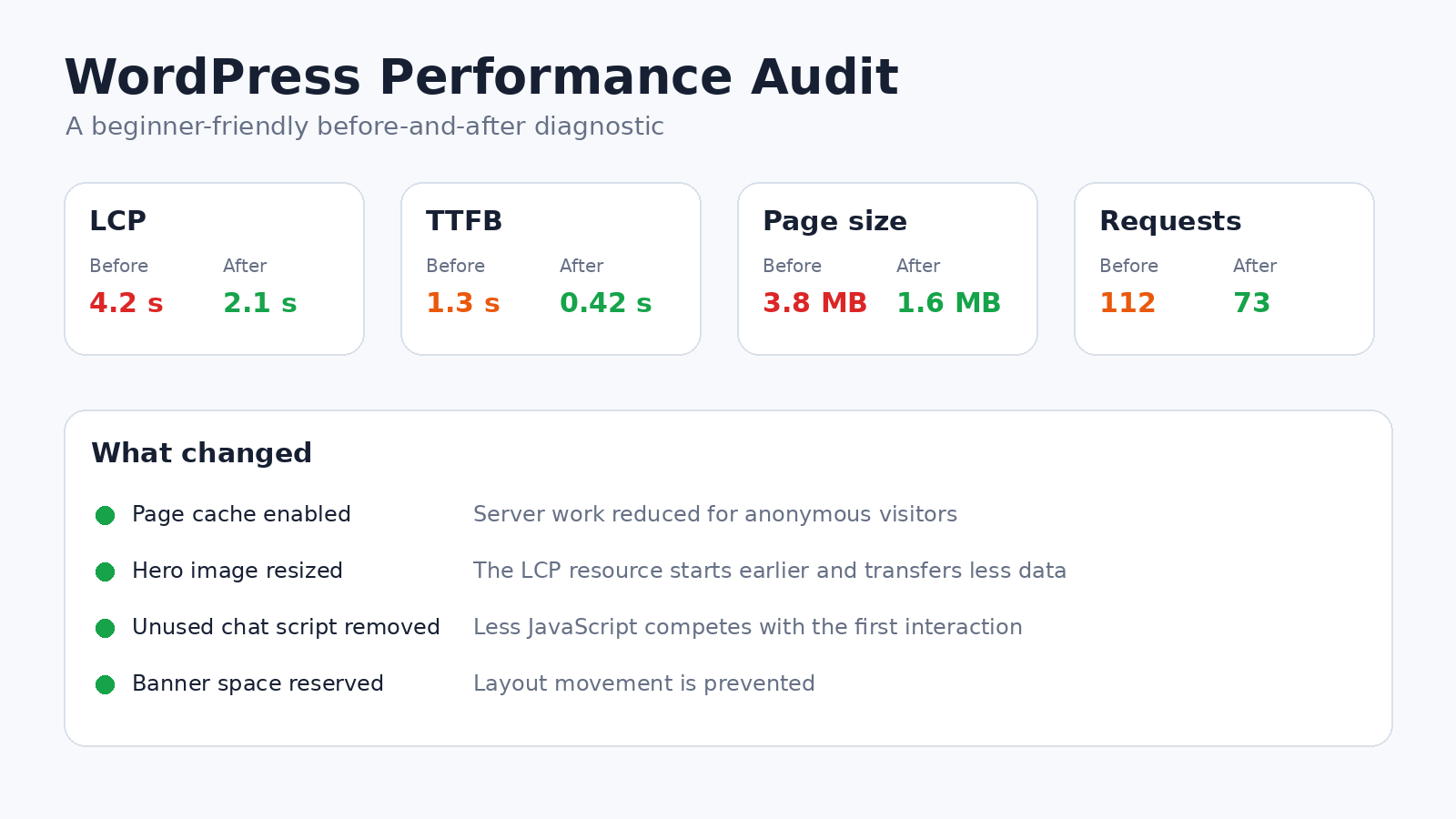
Practical Example: Fixing a Slow Homepage
The following is an illustrative example.
Imagine a WordPress homepage with these symptoms:
- The main banner appears late.
- The page shifts when a promotional bar loads.
- The mobile menu responds slowly.
- Repeat visits are faster than the first visit.
Initial Findings
A performance test shows:
- The hero image is the LCP element.
- The hero image is much wider than its display area.
- The image is lazy-loaded.
- Four font weights load before the page is visible.
- A chat widget and two marketing scripts run during startup.
- Page caching works only after the first request.
- The promotional bar has no reserved space.
Changes Made
- Resize the hero image for its actual display width.
- Serve an appropriate responsive format.
- Remove lazy loading from the hero image.
- Reduce font files from four weights to two.
- Load the chat widget only after interaction.
- Remove an inactive marketing script.
- Reserve space for the promotional bar.
- Warm the page cache after publishing changes.
Why These Changes Work
Change Problem addressed Smaller hero image Reduces download time No lazy loading on hero Starts the LCP request earlier Fewer font files Reduces competition for important resources Delayed chat widget Reduces startup JavaScript work Removed unused tracker Reduces requests and execution Reserved banner space Prevents layout movement Cache warming Improves the first visitor experience after a purge The important lesson is not the exact settings. Each change is tied to a measured problem.
Practical Example: A Fast Homepage but Slow WooCommerce Store
A fast cached homepage can hide serious performance problems in checkout, search, account pages, and administrative screens.
Imagine a store whose homepage loads quickly, but product filters, cart updates, and the WordPress dashboard are slow.
Likely Explanation
The homepage is fully cached, while store actions are dynamic.
Product filtering, cart updates, customer accounts, and administrative pages may require:
- PHP execution
- Database queries
- AJAX or REST requests
- Session handling
- Inventory calculations
- Tax or shipping logic
- Third-party tracking
Improving the cached homepage will not solve these requests.
Diagnostic Workflow
- Test a product page while logged out.
- Test a filtered category page.
- Record the time for an add-to-cart request.
- Test the cart and checkout separately.
- Check slow AJAX or REST requests in the browser.
- Review application monitoring or host logs.
- Check background queues and scheduled actions.
- Test whether persistent object caching improves repeated database work.
- Review extensions that modify pricing, filtering, inventory, shipping, or checkout.
- Confirm that cart and account pages are correctly excluded from public caching.
For dynamic sites, focus on the speed of individual actions rather than only the initial page load.
A store can display a product page quickly but still feel slow when:
- Filters take several seconds.
- The cart spinner remains active.
- Checkout recalculates slowly.
- Admin order screens time out.
These are application-performance problems, not simply front-end page-weight problems.
Practical Example: The Optimization Plugin Made the Site Worse
Imagine that a site owner enables every available optimization setting at once:
- CSS minification
- CSS combination
- Unused-CSS removal
- JavaScript defer
- JavaScript delay
- Lazy loading
- Font preloading
- Database cleanup
The score increases, but:
- The mobile menu needs two taps.
- The contact form does not validate correctly.
- The cookie banner appears late.
- Analytics records fewer visits.
- The first interaction freezes briefly.
What Went Wrong
Too many changes were enabled at once. It is impossible to identify which feature caused each problem.
Recovery Process
- Disable all newly enabled asset-processing features.
- Keep page caching active if it is stable.
- Clear generated CSS and JavaScript files.
- Retest the website.
- Enable CSS minification only.
- Test important templates.
- Enable JavaScript defer.
- Test menus, forms, consent, and checkout.
- Test unused-CSS removal separately.
- Add JavaScript delay only for clearly optional third-party scripts.
An optimization setting is not beneficial merely because it is available. Each setting should solve a visible or measured problem.
How to Decide Whether a Speed Recommendation Is Worth Doing
Before applying any recommendation, answer five questions.
1. Does the Problem Exist?
Do not optimize a resource merely because a test tool mentions it.
A report may recommend minifying an already small stylesheet. The potential saving may be negligible compared with a large hero image or slow server response.
2. Does the Recommendation Affect Important Users?
Prioritize problems affecting:
- Mobile users
- High-traffic pages
- Checkout
- Forms
- Search
- Navigation
- Logged-in customers
- Main landing pages
A minor issue on an old, rarely visited archive page may not deserve immediate work.
3. What Could Break?
Consider:
- Menus
- Forms
- Checkout
- Tracking
- Advertising
- Consent
- Personalization
- Accessibility
- Logged-in states
4. Can You Verify the Benefit?
Define the expected result before changing anything.
Examples:
- The hero image should begin downloading earlier.
- TTFB should improve on uncached requests.
- The chat script should disappear from initial loading.
- The layout shift should stop.
- The filter interaction should respond faster.
5. Is the Maintenance Cost Reasonable?
A complex optimization may require:
- Regular exclusions
- Regeneration after updates
- Developer support
- Cache debugging
- Testing across many templates
A small improvement may not justify permanent complexity.
A recommendation is worth applying only when the problem exists, the expected benefit is clear, and the risk is manageable.
High-Impact Versus Low-Impact Optimization
Not every recommendation deserves equal attention.
Usually High Impact
- Reliable full-page caching
- Correctly sized hero images
- Removing unnecessary third-party scripts
- Fixing slow uncached server responses
- Simplifying heavy page-builder layouts
- Removing unused sliders and video backgrounds
- Fixing a slow plugin or database query
- Improving expensive dynamic actions
Often Medium Impact
- Reducing font files
- Restricting plugin assets by page
- Deferring suitable JavaScript
- Using click-to-load embeds
- Persistent object caching on dynamic sites
- CDN edge caching
- Reducing large CSS bundles
Often Low Impact Unless a Specific Problem Exists
- Removing query strings
- Deleting a small number of revisions
- Combining every file
- Minifying tiny resources
- Changing image format without resizing
- Preloading several resources
- Cleaning the database on a fixed schedule
- Installing another optimization plugin
Do not spend an hour saving a few kilobytes while a multi-megabyte hero image or slow database request remains untouched.
A Performance Budget for WordPress Pages
A performance budget is a set of limits that prevents pages from becoming heavier over time.
Track:
- Total transferred page size
- Main image size
- Total JavaScript
- Number of font files
- Number of third-party domains
- Number of above-the-fold images
- Total layout shift
- Server response time
- Number of page-builder sections
- Number of external embeds
Example Budget
A marketing team might adopt rules such as:
- No autoplay background video on landing pages.
- No new third-party script without an owner and purpose.
- Use one primary font family.
- Resize and compress hero images before publication.
- Use click-to-load embeds where practical.
- Test new plugins on staging.
- Retest important pages after major design changes.
A performance budget prevents the site from becoming slow again after the current cleanup is finished.
The best budget is one the publishing, design, and marketing teams can enforce before new assets or scripts go live.
Performance Testing Workflow for Site Updates
Use this workflow after:
- Installing a plugin
- Changing themes
- Updating a page builder
- Redesigning the homepage
- Adding advertisements
- Adding analytics or chat
- Migrating hosts
- Enabling a CDN
- Changing PHP
- Launching a campaign landing page
Before the Change
- Record three important URLs.
- Save mobile and desktop results.
- Record cache status.
- Capture screenshots of important layouts.
- List critical functionality.
- Note current errors.
After the Change
- Clear only affected caches.
- Warm important pages.
- Repeat the same tests.
- Compare median results.
- Test mobile navigation.
- Submit forms.
- Test search.
- Test login.
- Test cart and checkout when applicable.
- Confirm analytics and consent.
- Check browser and server errors.
Approve the Change When
- The intended feature works.
- Performance remains stable or improves.
- No important metric regresses significantly.
- Critical user journeys remain reliable.
Roll Back or Investigate When
- TTFB increases sharply.
- LCP becomes slower.
- Layout shifts appear.
- Interactions become delayed.
- Errors increase.
- Cache-hit ratio drops.
- Important scripts stop recording correctly.
How to Find Performance Regressions After an Update
When a website becomes slow after an update, avoid making several unrelated changes.
Create a Change Timeline
Record:
- WordPress core updates
- Plugin updates
- Theme updates
- PHP changes
- Hosting changes
- CDN changes
- New scripts
- New advertisements
- Content redesigns
- Traffic increases
Narrow the Time Window
Ask:
- When was the site last known to be fast?
- What changed immediately afterward?
- Is the issue on every page or one template?
- Does it affect logged-out visitors, logged-in users, or both?
- Is it constant or intermittent?
Compare the Likely Component
Examples:
- Slow only after a page-builder update: inspect generated CSS and JavaScript.
- Slow only on checkout after a payment update: inspect checkout requests.
- Slow everywhere after a security update: inspect scanning and request processing.
- Slow after a CDN change: check cache status, redirects, and origin connection.
- Slow after a content redesign: compare image size, DOM complexity, scripts, and fonts.
A rollback can confirm correlation, but it does not always prove that the updated component is defective. The update may reveal an existing conflict, outdated custom code, or insufficient server resources.
Common WordPress Speed Mistakes
Installing Several Optimization Plugins
Multiple tools may attempt to control the same feature:
- Full-page caching
- CSS minification
- JavaScript delay
- Unused-CSS removal
- Image lazy loading
- CDN URL rewriting
- Database cleanup
Choose one system to control each optimization feature.
Document which layer handles:
- Full-page caching
- Asset optimization
- Image delivery
- CDN behavior
- Database maintenance
Treating Cache Clearing as a Universal Fix
Clearing every cache after every edit makes testing less reliable and can create unnecessary server load.
Clear the layer affected by the change and leave unrelated caches alone.
Change Cache likely to clear Edited page content Page cache and possibly CDN HTML cache Replaced an image using the same URL Browser or CDN asset cache may also matter Changed CSS or JavaScript Asset optimization cache, page cache, and CDN asset cache Changed product price Page cache and commerce-related cache rules Changed database settings Page cache; object cache only when the setting is cached there Updated a plugin Plugin-generated assets, page cache, and CDN as required Opcode and object caches should not be flushed after every minor content edit.
Chasing a Perfect Score
A higher score is not an improvement when the menu, form, checkout, consent banner, or analytics implementation stops working.
Do not damage:
- Accessibility
- Navigation
- Checkout reliability
- Analytics accuracy
- Advertising obligations
- Readability
- Important functionality
Stop when important pages are stable, real users receive a good experience, and further changes provide little measurable benefit.
Lazy-Loading Everything
Lazy-load content that starts outside the viewport.
Allow the main visible image and other critical content to load normally.
Preloading Too Many Resources
Preload is a priority instruction, not a general-purpose speed setting.
Use the correct hint for the problem:
preloadfor a critical resource required by the current pagepreconnectfor an important third-party origin that will be used soondns-prefetchas a lighter early DNS hintfetchpriorityto adjust the priority of eligible resources
Do not apply all of them to every font, image, and third-party domain.
Blaming All Plugins Equally
Plugin count alone is not a reliable diagnosis.
Measure:
- PHP execution
- Database work
- Front-end assets
- External requests
- Scheduled tasks
- Admin overhead
Assuming a CDN Fixes the Origin
A CDN may cache and distribute content, but uncached requests can remain slow when PHP, plugins, or database queries are inefficient.
Deleting Database Records Without Understanding Them
Direct database cleanup can break settings, licenses, scheduled tasks, and plugin relationships.
Back up first and identify ownership before deleting anything.
Troubleshooting Common Problems
The Site Became Slower After Enabling Optimization
When an optimization breaks the site, disable the most recent feature first instead of adding more exclusions blindly.
- Disable the most recently enabled feature.
- Clear only the caches affected by that feature.
- Test while logged out.
- Check whether the first request is a cache miss.
- Inspect the browser console for errors.
- Confirm that background processing, such as image conversion or critical-CSS generation, has completed.
- Re-enable features one at a time.
The Layout Broke After CSS Optimization
Check:
- Mobile menu
- Header and footer
- Forms and validation messages
- Pop-ups
- Tabs and accordions
- Logged-in state
- Cart and checkout
- Responsive breakpoints
Exclude the affected file or selector from unused-CSS processing, regenerate optimized files, and document the exclusion.
Menus, Forms, or Buttons Stopped Working
Temporarily disable JavaScript delay before disabling minification. Delay settings are a common cause of features working only after a second click or after several seconds.
Identify the script owner, exclude only the required dependency, and retest the entire interaction.
Changes Do Not Appear
Work through cache layers in order:
- Confirm that the page was saved or published.
- Purge the WordPress or server page cache.
- Purge CDN HTML or asset cache when relevant.
- Test in a private window.
- Reload without using the browser’s stored file.
- Check whether the file URL changed.
- Flush the object cache only when the changed value is stored there.
The Site Is Fast for Visitors but Slow for Administrators
Profile one specific dashboard action.
Look for:
- Slow REST or AJAX requests
- External API calls
- Large admin queries
- Scheduled jobs
- Autoloaded data
- Missing object caching
- Security scans
- Backup activity
- Worker or memory limits
Mobile Is Much Slower Than Desktop
Mobile tests are often slower because the simulated processor is weaker, not only because the connection is slower.
Prioritize:
- JavaScript execution
- Large hero media
- Third-party scripts
- Complex DOM structures
- Mobile-only pop-ups
- Excessive animation
- Font files
- Layout recalculation
Test important pages on a real phone and interact with them, rather than judging only the initial visual load.
Use both Wi-Fi and mobile data when possible. Test:
- Mobile navigation
- Forms
- Search
- Filters
- Cart actions
- Layout stability
Performance Changes Between Tests
Common causes include:
- Cache hits versus misses
- Shared-server load
- Network conditions
- Geographic test location
- Third-party response times
- Background jobs
- CDN edge status
Run several comparable tests and look for patterns rather than relying on one result.
When to Contact Your Host, Plugin Developer, or Web Developer
Contact the Host When
- CPU, memory, storage, or worker limits are reached.
- TTFB remains slow on a minimal staging copy.
- Server errors or timeouts appear.
- Persistent object caching needs configuration.
- A real cron job must be created.
- PHP or database logs are required.
- CDN or server-cache headers are unclear.
Provide:
- Exact slow URLs
- Date and time of tests
- Logged-in or logged-out status
- Cache-hit or miss result
- Screenshots or test reports
- Steps needed to reproduce the issue
Contact the Plugin Developer When
- A specific plugin creates slow queries.
- Its assets load on pages where the feature is absent.
- A scheduled event duplicates itself.
- It conflicts with defer, delay, or unused-CSS processing.
- It creates repeated API requests.
- The problem disappears when only that plugin is disabled.
Contact a Developer When
- The problem involves custom theme code.
- Database queries need indexing or rewriting.
- AJAX or REST callbacks are slow.
- Cache rules must support personalized content.
- A store or membership site needs production profiling.
- Optimizations require complex exclusions.
- Performance problems involve several interacting systems.
Recommended Optimization Plan for Beginners
1: Beginner-Safe Improvements
- Create and verify a backup.
- Test three representative URLs while logged out.
- Confirm that one full-page cache is working.
- Resize and compress the main visible image.
- Remove one clearly unnecessary plugin or third-party widget.
- Remove unnecessary sliders, autoplay video, or decorative media.
- Test the mobile menu, contact form, and search.
2: Careful Configuration
- Reduce unnecessary font files.
- Restrict plugin assets to pages where they are needed.
- Review third-party scripts and duplicate tracking.
- Defer suitable JavaScript.
- Test unused-CSS or critical-CSS features on staging.
- Reserve space for images, embeds, advertisements, and banners.
- Replace heavy embeds with accessible click-to-load previews.
3: Host-Assisted or Developer-Level Work
- Review CPU, memory, worker, and database limits.
- Profile slow PHP requests and database queries.
- Review autoloaded options.
- Inspect scheduled tasks and background queues.
- Test persistent object caching.
- Configure server cron when a demonstrated need exists.
- Review CDN cache rules and hit ratio.
- Investigate REST, AJAX, and commerce-specific bottlenecks.
4: Verification
- Retest the original URLs using the same setup.
- Record cache-hit and cache-miss results.
- Test on a real phone.
- Open menus, tabs, accordions, and pop-ups.
- Submit a contact form.
- Test search and login.
- For stores, add and remove a cart item, apply a coupon, and complete a test checkout.
- Confirm that analytics, consent controls, and advertisements still work.
- Check browser console and server errors.
- Stop when further changes provide little measurable benefit or introduce unnecessary risk.
WordPress Speed Optimization Comparison Table
Optimization Use it when Skip or postpone it when Skill level Full-page caching Anonymous pages are rebuilt on every visit The host already provides a verified equivalent Beginner Image resizing and compression Large images dominate page transfer or LCP Images are already correctly sized and compressed Beginner Plugin cleanup Features are duplicated or unused A plugin is business-critical, and its impact is unmeasured Beginner to intermediate Layout simplification Sliders, videos, or complex builders dominate the page The feature is essential and already efficient Beginner to intermediate Hosting upgrade Resource limits or slow uncached processing are proven No evidence connects the host to the delay Host-assisted Font optimization Several families, weights, or icon fonts load Only a small, necessary font set is used Beginner to intermediate JavaScript defer Non-critical scripts block HTML parsing Script order or functionality breaks Intermediate JavaScript delay Optional third-party scripts dominate initial loading The first interaction becomes slow, or tracking becomes inaccurate Intermediate Unused-CSS removal Large amounts of global CSS are unused Dynamic states cannot be tested thoroughly Intermediate to advanced CDN Audience geography, traffic, or origin load justifies it The setup adds complexity without improving measured results Intermediate Persistent object cache Dynamic or logged-in requests repeat database work The site is small and effectively page-cached Host-assisted Database profiling Specific queries or admin screens are slow The only evidence is total database size Developer WP-Cron changes Jobs are late, duplicated, overlapping, or slow No scheduled-task problem has been demonstrated Host-assisted or developer Expert Checklist Before Publishing a New Page
Content and Media
- The hero image uses appropriate dimensions.
- Images are compressed.
- The LCP image is not lazy-loaded.
- Below-the-fold images are lazy-loaded.
- Image dimensions or aspect ratios are defined.
- Video and maps use lightweight previews where practical.
Design
- There is no unnecessary slider.
- There is no autoplay background video.
- Font families and weights are limited.
- Hidden mobile and desktop sections do not duplicate large content.
- Animations do not delay content or interaction.
- Dynamic banners reserve space.
Scripts and Tracking
- Analytics is not duplicated.
- Campaign scripts are still active and necessary.
- Chat loads only where needed.
- Third-party embeds have been reviewed.
- Consent behavior works correctly.
- Delayed scripts do not slow the first click.
Verification
- Test while logged out.
- Mobile test.
- Check LCP and CLS.
- Open the mobile menu.
- Submit the form.
- Verify tracking.
- Confirm page caching.
- Check browser errors.
Frequently Asked Questions
Why is my WordPress website slow?
The most common causes are weak hosting, missing page caching, oversized images, heavy plugins or themes, excessive JavaScript, third-party scripts, and inefficient database or background processes.
Measure the site before deciding which cause applies.
What is the fastest way to speed up WordPress?
For many websites, the highest-impact first steps are:
- Enable reliable full-page caching.
- Resize and compress large images.
- Remove unnecessary plugins and third-party scripts.
- Simplify heavy layouts.
- Confirm that hosting is not resource-limited.
The correct first step depends on the bottleneck.
Do too many plugins slow down WordPress?
They can, but plugin quality and behavior matter more than the count.
A plugin may be expensive because it:
- Runs slow database queries
- Loads assets everywhere
- Makes external requests
- Starts frequent background tasks
- Adds heavy administrative processing
Test actual impact rather than using an arbitrary plugin limit.
Does a cache plugin speed up WordPress?
A properly configured cache plugin can significantly reduce the work required to serve cacheable pages.
It will not automatically fix:
- Oversized images
- Excessive browser-side JavaScript
- Slow third-party services
- Logged-in requests
- Inefficient database queries
It may also be unnecessary when the host already provides effective server-level caching.
Do I need a CDN?
Not every site needs one.
A CDN is most useful when:
- Visitors are geographically distributed.
- The origin is far from users.
- Static files are heavy.
- Traffic arrives in spikes.
- Edge caching reduces meaningful origin work.
Does a faster website rank higher in Google?
Performance and Core Web Vitals contribute to page experience, but a faster website is not guaranteed to rank higher.
Relevance, helpfulness, intent satisfaction, links, accessibility, and many other signals still matter.
Speed work should primarily improve the experience of visitors rather than serve as a standalone ranking tactic.
Should I optimize for a score of 100?
No.
Use the score to identify problems, not as the sole objective.
Prioritize:
- Real visitor experience
- Stable functionality
- Accessibility
- Business outcomes
- Important user journeys
Should I minify CSS and JavaScript?
Minification can reduce file size, but it is normally a secondary improvement.
Removing unnecessary assets and reducing execution work usually matters more.
Test minification because old or poorly written code can expose compatibility problems.
Should I combine all CSS and JavaScript files?
Not automatically.
Combining can create large bundles, reduce cache efficiency, and cause dependency conflicts.
Modern network protocols have changed the trade-off. Measure both configurations.
Should I lazy-load every image?
No.
Lazy-load images that begin below the visible area. Do not lazy-load a main hero or featured image when it is needed immediately, especially when it is the LCP element.
How often should I clean the WordPress database?
There is no universal schedule.
Clean it when you have identified unnecessary data and have a safe backup.
Frequent automated cleanup is not a substitute for diagnosing inefficient queries or oversized autoloaded options.
Why does PageSpeed give me a different result each time?
Results vary because of:
- Cache status
- Network conditions
- Test location
- Server load
- Third-party services
- Background work
Run several tests with the same configuration and compare the median result.
Why is the first visit slower than the second?
The first visit may need to:
- Generate the page
- Populate a CDN edge
- Download static files
- Establish new connections
Repeat visits may use page, CDN, and browser caches.
Measure both. New visitors still matter.
Why is my homepage fast but product or category pages are slow?
Different templates may use different:
- Database queries
- Plugins
- Images
- Scripts
- Filters
- Cache rules
Test each important template rather than assuming the homepage represents the entire website.
Can changing hosts fix Core Web Vitals?
It can improve server-related delays, especially TTFB and uncached processing.
It will not automatically fix:
- Oversized images
- Render-blocking CSS
- Excessive JavaScript
- Layout shifts
- Third-party scripts
Why did my score improve while the website feels worse?
An optimization may have:
- Postponed work until the first click
- Delayed navigation or forms
- Hidden a feature during the test
- Interrupted tracking
- Created a visible flash
Synthetic scores must be checked against real interaction and functionality.
Why is WordPress slow only when I am logged in?
Logged-in requests often bypass full-page caching and load additional account, editor, commerce, or membership features.
Investigate:
- Database queries
- Plugins
- Object caching
- REST or AJAX calls
- External services
- Server resources
How do I know which script belongs to a plugin?
Inspect the script URL in the browser Network panel.
Paths under
/wp-content/plugins/usually reveal the plugin folder, while/wp-content/themes/identifies the theme.Files loaded from another domain usually belong to a third-party service.
How do I find the LCP element?
Run the page through PageSpeed Insights or open Chrome DevTools Performance tools.
The report normally identifies the element used for LCP. It is often the hero image, featured image, large heading, or main content block.
Can image optimization reduce image quality?
Yes.
Compression that is too aggressive or dimensions that are too small can harm:
- Product images
- Portfolios
- Screenshots
- Diagrams
- Text-heavy graphics
Check important images visually after optimization.
How do I know whether an optimization worked?
Repeat the same tests on the same URLs under comparable conditions.
Also test:
- Navigation
- Forms
- Search
- Login
- Filters
- Cart
- Checkout
- Analytics
- Consent controls
A lower page size or higher score is not a success when important functionality stops working.
When should I stop optimizing?
Stop when:
- Important pages perform reliably.
- Real-user Core Web Vitals are healthy where data is available.
- Menus, forms, search, login, and checkout work correctly.
- Further changes produce only small gains.
- Additional complexity would make the site harder to maintain.
Final Takeaway
Test the full user journey, not only the URL that produces the best score.
A visitor may need to:
- Open a landing page.
- Use the navigation.
- Search or filter.
- Open a product or article.
- Submit a form or add an item to the cart.
- Complete the intended action.
Measure the parts of the journey that matter:
- Navigation response
- Search speed
- Filter response
- Form submission
- Cart updates
- Login
- Checkout
- Confirmation pages
The most valuable optimization is the one that removes delay from the action the visitor came to complete.